Motion graphics is no longer “only After Effects.” Today I can generate motion scenes from text, animate static designs into loops, export web-ready Lottie files for product UI, or turn a blog post into a social-ready animated video in minutes. The catch is that each tool solves a different part of the motion pipeline. If I pick the wrong tool, I end up fighting limitations instead of gaining speed.
This guide is built by diving into the tools and sources you shared, and it focuses on what actually matters in production: what each platform is good at, what it struggles with, and where it realistically fits.
For prompt-to-motion composition with editable structure
Tool URL: hera.video
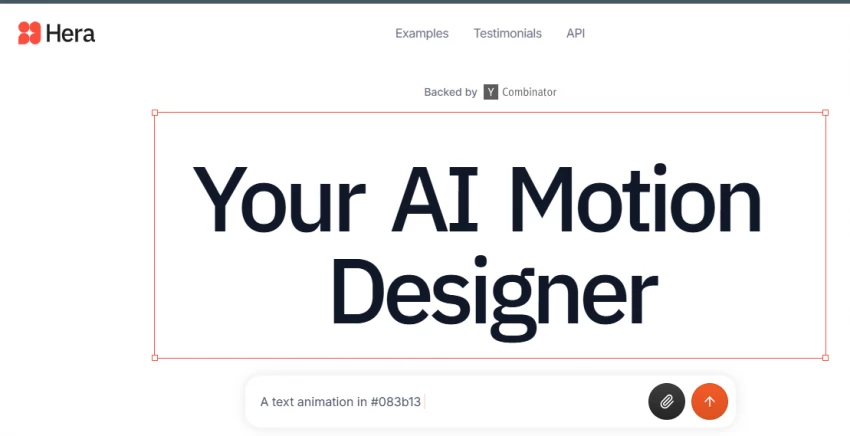
Hera is positioned as an “AI Motion Designer,” and the important part is that it’s trying to generate motion graphics, not just “AI video.” Hera’s flow is built around describing what I want to animate in natural language, then letting the system assemble an animated composition. The platform also highlights that I can work from prompts and reference inputs such as uploaded visuals, logos, or other assets, which matters because motion graphics often depends on brand elements, not only AI imagination.
Where Hera becomes genuinely useful is when I want to produce explainer-style visuals, simple infographic motion, map-style or educational visuals, or branded animated slides that would normally take a long time to build manually. The video library examples and tutorials emphasize practical editing controls like repositioning text, scaling and adjusting elements, and changing colors, which is closer to “motion layout editing” than to cinematic filmmaking.
Where Hera can disappoint is when I expect deep timeline control or physically accurate animation. It’s fast for structured motion graphics, but it’s not a replacement for complex AE rigs, character animation, or detailed keyframe choreography. It’s best when I treat it like a motion design generator that I still direct and refine.
For modern motion design loops, UI animations, and crisp exports
Tool URL: jitter.video
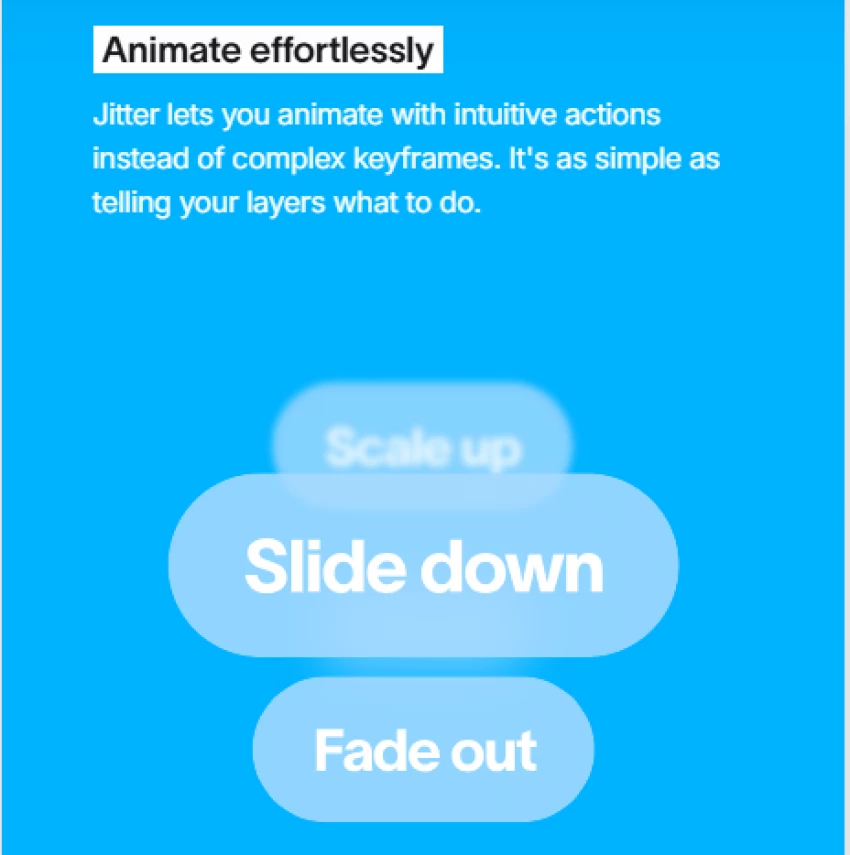
Jitter is one of the cleanest “motion-first” web tools for designers, and it shines in the exact place many teams struggle: short motion systems for products and social. It’s built for animating text, shapes, UI components, and layout blocks in a structured way, and it gives me export options that are genuinely production-friendly.
The reason I rate Jitter highly for motion graphics (not “AI video”) is export quality and format diversity. Jitter explicitly supports high-quality exports like 4K up to 120 fps, and formats including MP4/MOV/WebM, GIF, and Lottie. That matters because motion graphics isn’t only for Instagram; it’s also for websites, product UI, app onboarding, and landing pages, where Lottie files are gold.
Jitter also supports advanced motion design features like importing custom fonts, vector path animation, and richer content via video/audio imports. And it has a strong templates ecosystem for fast starts, including free motion templates and category-specific sets.
The practical limitation is that Jitter is not a prompt-driven generator like Hera or Leonardo. It is still a design tool. I get speed, but I still need taste and motion sense. Also, Jitter’s own documentation indicates export constraints differ by plan, with the free plan capped to lower resolution and frame rate compared to paid tiers.
If I’m building motion identity systems, product loops, kinetic text, UI microinteractions, or social reels with clean typography, Jitter is one of the most useful tools in this entire list.
For turning scripts and blog posts into finished motion videos
Tool URL: opus.pro
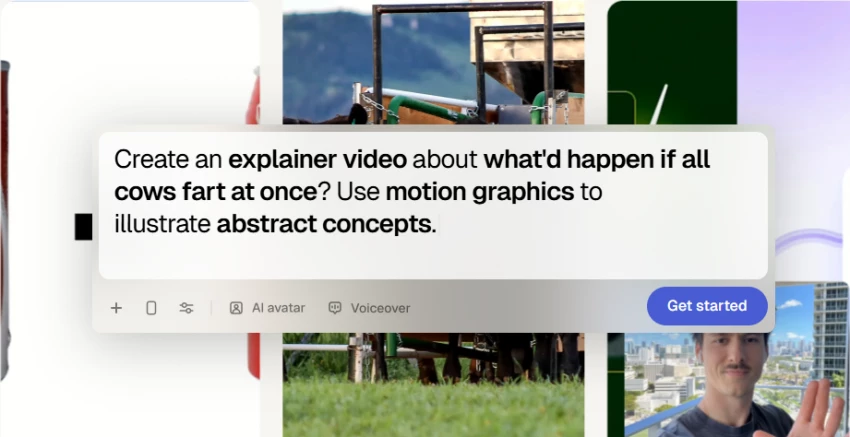
Agent Opus is not trying to be a timeline editor. It’s trying to be a “make the whole thing for me” system that turns text into a complete motion graphics video. Its workflow page explicitly says it converts prompts, scripts, or blog posts into animated videos with dynamic visuals, voiceover, and social-ready formatting.
This category matters because a lot of people asking for “AI motion graphics” actually want content production at scale for Reels, Shorts, TikTok, and LinkedIn. Opus leans directly into that. It positions itself as blending real-world assets with AI motion to avoid the usual “AI motion slop,” and it also emphasizes sourcing visuals from web-style content libraries to match the story without manual B-roll hunting.
The practical strength is speed-to-output. If I’m running a content engine and need multiple motion explainers weekly, Opus makes sense. The tradeoff is creative specificity. The more I care about custom brand motion language, micro-typography decisions, or nuanced pacing, the more I’ll still want Jitter or After Effects.
If I want publish-ready motion content from text with minimal manual assembly, Agent Opus is one of the most directly aligned options.
For template-driven viral hooks and “After Effects style” motion without keyframes
Tool URL: autoae.online
AutoAE is built around a very specific creator pain: “I want After Effects-looking motion graphics, but I don’t want timelines, keyframes, or complexity.” Its site describes a process where I type a script or describe what I need, and the system matches me with a motion graphic output such as text animation, video mockups, and similar assets, then I customize quickly and export.
AutoAE also leans heavily into modern social formats, including “viral hooks,” flowchart-style animated transitions, and creator-friendly clips meant to boost retention. This is very different from “motion design for brand identity.” It’s motion graphics optimized for attention.
If I’m making YouTube hooks, short-form overlays, animated subtitles, and fast trend-driven motion assets, AutoAE can be useful because it compresses a workflow that normally takes AE templates + manual editing.
The limitation is obvious: template-based motion can start to look repetitive if I don’t invest in customization. AutoAE’s strength is velocity. If my content relies on uniqueness and high craft, I’ll still rely on pro motion tools, but if my goal is fast, social-native motion elements, AutoAE fits.
AutoAE also has its own pricing page (so it’s not purely free), which matters if you’re comparing cost stacks.
For generative video motion, animated stills, and cinematic-style sequences
Tool URL: leonardo.ai
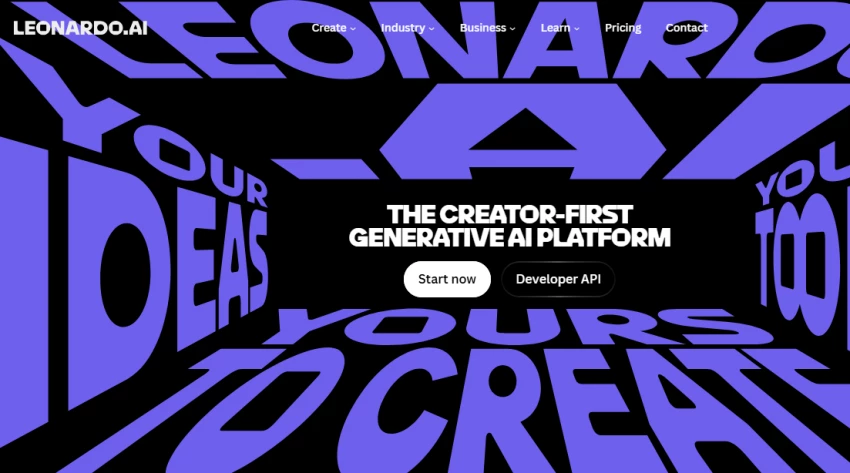
Leonardo is useful when “motion graphics” includes AI-generated motion scenes, animated stills, and short stylized sequences for backgrounds, transitions, or creative content. Leonardo’s AI video generator positioning focuses on control across text-to-video and image-to-video workflows and emphasizes animating stills into motion.
A practical advantage is entry cost and plan structure transparency. Leonardo’s pricing page publicly shows a free tier and token-based model, so I can test without committing immediately.
Leonardo’s ecosystem also includes integrations and newer generation offerings like Veo access through the platform (as it presents it), which matters if I’m trying to keep multiple motion experiments inside one tool suite.
Where Leonardo isn’t the best fit is traditional motion graphics like kinetic typography systems, infographic builds, or consistent brand motion templates. It’s better for creative motion generation than for structured brand design output.
AI as an enhancement layer, not a replacement
_1771659262.webp)
Source URL: schoolofmotion.com
The most grounded lens in your sources comes from School of Motion, because it frames AI tools as “actually helpful” when they speed up real tasks motion designers already do. Their discussion includes categories like upscaling footage, text-to-video generation, vector generation, and ideation tools, which reinforces the most practical reality: motion workflows benefit most when AI reduces friction in the boring steps, not when it tries to replace animation fundamentals.
If I’m building a serious motion workflow, I treat this as my operating principle: I use AI to accelerate input assets, drafts, and variations, and I still apply design judgment to pacing and storytelling.
_1771659349.webp)
Source URL: hatchstudios.com
Hatch Studios’ overview is useful because it validates the “tool category problem.” Not every AI tool is meant to do the same job. Their piece highlights mainstream AI tools used in motion contexts (like Runway, Midjourney, Firefly) and frames AI as changing the production toolkit, not producing a single replacement tool.
This matters because it prevents the common mistake: choosing a cinematic AI video tool for a motion graphics task that really needs typography, layout systems, and repeatable templates.
When I read community threads asking for “best free AI platform to create motion animation,” the answers usually show the same pattern: tools vary wildly, and people recommend different generators depending on whether they need sound, photoreal motion, or still animation. In the thread you shared, users discuss options like Veo and Kling-style photo animation, and they point out cost and limitation tradeoffs.
This is why I never anchor a production pipeline on “free” alone. Free tiers are best for experimentation. The moment deadlines, client quality, export resolution, and consistency matter, the economics usually shift toward paid plans.
After exploring Hera, Jitter, Agent Opus, AutoAE, Leonardo AI, and the broader industry analysis from motion design educators and studios, one thing becomes clear: there is no single “best” AI tool for motion graphics.
Each platform solves a different problem.
Hera simplifies structured motion creation through AI-assisted composition.
Jitter excels at clean, web-ready UI and typography animation.
Agent Opus focuses on scaling motion content from scripts and blogs.
AutoAE accelerates template-driven social hooks and animated text.
Leonardo AI expands creative possibilities through generative video motion.
AI has not replaced motion design fundamentals. It has reduced production friction. The strongest workflows today combine AI speed with human timing, pacing, and storytelling judgment.
Motion graphics is still a craft. AI just changes how quickly we can execute it.
Which AI is best for motion graphics?
The best AI depends on your goal. Hera works well for structured branded motion, Jitter is strong for UI and typography animation, Agent Opus is effective for automated social video creation, AutoAE is useful for template-driven hooks, and Leonardo AI excels at generative cinematic motion.
How to use AI to make motion graphics?
Start by defining the type of motion you need, such as explainer animation, social content, or UI loops. Use AI tools to generate base scenes or templates, then refine timing, layout, and pacing manually. AI speeds up creation, but final polish still benefits from human control.
What is the best AI to use for graphics?
For design-focused graphics that may later become motion, Leonardo AI works well for generative visuals, while tools like Jitter help animate clean design layouts. The best option depends on whether you prioritize creativity, branding consistency, or speed.
What is the best AI motion capture?
Dedicated AI motion capture tools that use pose tracking and skeletal detection provide the best results for character animation. General video AI platforms are not optimized for high-precision motion capture workflows.
Be the first to post comment!
Blaze AI presents itself as an all-in-one AI marketing platform built specifical...
Sakshi Dhingra14 hours ago
AI video generation is no longer experimental. It has become a production workfl...
Sakshi Dhingra1 day ago
When I evaluate an AI video tool, I don’t just skim the homepage. I trace the fu...
Sakshi Dhingra1 day ago

Uber Eats is officially moving beyond simple food delivery and positioning itsel...
Sakshi Dhingra1 week ago
I’ll admit it, SpicyChat AI is one of those tools you don’t exactly open with “s...
Vivek Gupta2 weeks ago
For months, the global AI industry has lived in a state of suspended animation w...
Vivek Gupta3 weeks ago