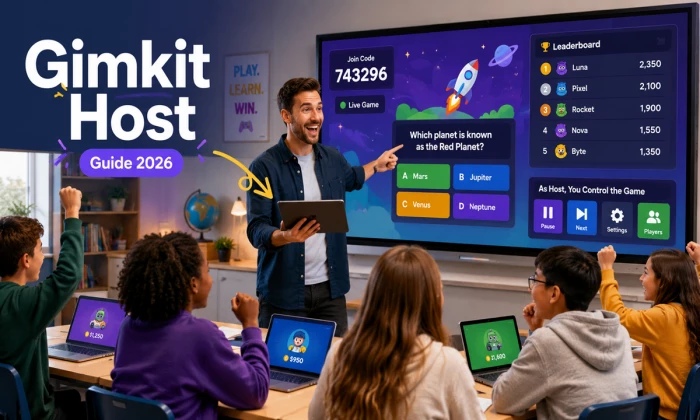
If you have ever watched a room full of students go from slumped-over-their-desks to leaning-in-and-shouting because of a quiz, there is a good chance Gimkit was involved. And the person pulling the strings behind that happy chaos? That is the host. That is you.
This guide walks you through everything about being a Gimkit host. We will cover what “host” even means, how to run your first game in under two minutes, which buttons actually matter while the game is live, what it all costs in 2026, and how Gimkit stacks up against the other big classroom games. By the end, you will be ready to fire one up and actually enjoy it. Let us get into it.
Short version: the host is the person who runs a live Gimkit game.
That is usually a teacher, but it can just as easily be a tutor, a trainer, a coach, or anyone leading a group. As the host, you are the one who builds or picks the questions, chooses how the game plays, hands out the join code, and steers the whole thing from your own screen while everyone else plays along.
Here is the part people love: only the host needs a Gimkit account. Your students do not sign up, do not log in, and do not download anything. They punch in a code and they are in. That single detail is why Gimkit spreads so fast in schools. One teacher account can light up an entire class of devices in seconds.
Think of yourself as part game-show host, part referee, part behind-the-scenes producer. You set the stage, keep the energy up, and read the room. Gimkit handles the rest.
Gimkit was not cooked up in a Silicon Valley boardroom. It was a high-school project.
Back in 2017, a junior named Josh Feinsilber at Gibson Ek High School in Issaquah, Washington got tired of the “fastest finger wins” style of classroom quiz game. He watched classmates who needed a few extra seconds to think slide down the leaderboard early, get discouraged, and just stop trying. So he built something different: a quiz game where you earn virtual cash for correct answers and spend it on upgrades, so a slow start does not sink you.
He originally called it “Gimlet.” The cocktail name did not stick, and Gimkit was born. He later teamed up with his former teacher, Jeff Osborn, to run it. The company is based in Seattle, has famously stayed small, and has turned down venture-capital money to keep control of the product.
It caught on fast. By May 2019, the last full month of that school year, Gimkit was reaching around three million players a month. Nearly a decade later it is still one of the three most-used review games in U.S. classrooms, right alongside Kahoot and Blooket, and Josh is still running it.
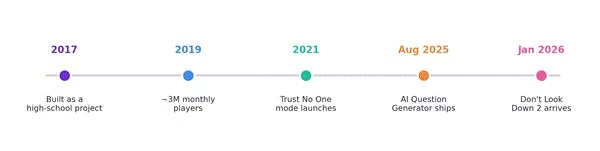
Gimkit’s journey from a bored student’s class project to a classroom staple. Notice how the pace of new features has picked up, with an AI question tool and a sequel platformer mode both landing within the last year.
Good news: hosting is genuinely quick. Once your questions are ready, you can be live in under two minutes. Here is the whole flow at a glance.
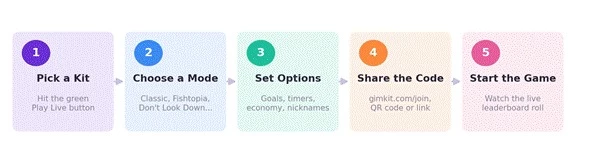
The five-step path every Gimkit host follows, from picking questions to watching the leaderboard climb. Steps 2 and 3 are where you shape how the game actually feels.
Now the same five steps in a little more detail:
1. Pick your kit. From your dashboard, find the kit (that is Gimkit-speak for a question set) you want and click the green Play Live button next to it. You can also hit Play Live from inside any kit.
2. Choose a game mode. The Mode Picker pops up with everything from the original Classic mode to full 2D adventures. Click one to select it (it gets a yellow outline), read the “Learn More” blurb if you are unsure, then click Continue in the top-right. Heads up: Gimkit does not remember your last mode, so you pick fresh every time.
3. Set your game options. This screen changes depending on the mode, but it is where you decide how the game ends (a time limit, a cash goal, or a question count), whether students can join late, whether to connect a class, and whether to turn on the Nickname Generator. More on why these matter shortly.
4. Share the join info. Click Continue and a Lobby tab opens with your game code. Students can get in three ways (we will break those down next). Watch names roll in and kick anyone who picked something silly before you start.
5. Start the game. When everyone is in, click Start Game. For 2D modes that button sits in the lower center; for other modes it is in the top-right. Hit it and you are off.
That is it. Five steps, and most of them are a couple of clicks.
Students have three ways to join, and you will probably use all of them depending on the day.
If you have set up Classes in Gimkit, your students can go to gimkit.com/join and get pulled into your game instantly, no code needed. That is the smoothest option for a class you run all the time. And to say it one more time because it matters: none of your students need an account. No sign-up, no password resets, no “I forgot my login.” They just join.
Once the game is running, you get a control panel in the top-right corner of your screen. This little cluster of buttons is your command center. Here is what is in there and when you will reach for each one.
A few extras worth knowing about:
Nickname Generator. Flip this on and Gimkit hands every student a random, safe, school-appropriate name they cannot change. No more decoding which kid is “SigmaRizzLord99,” and no more inappropriate names to police.
Read to Me. Gimkit can read questions aloud on each student’s own device, which is great for younger readers or mixed-ability groups.
Quick Actions. In non-2D modes you get quick actions that let you affect players mid-game, giving you levers to keep things fair and lively.
This is the part that keeps classes asking for Gimkit by name. It is not one game, it is a rotating arcade of them.
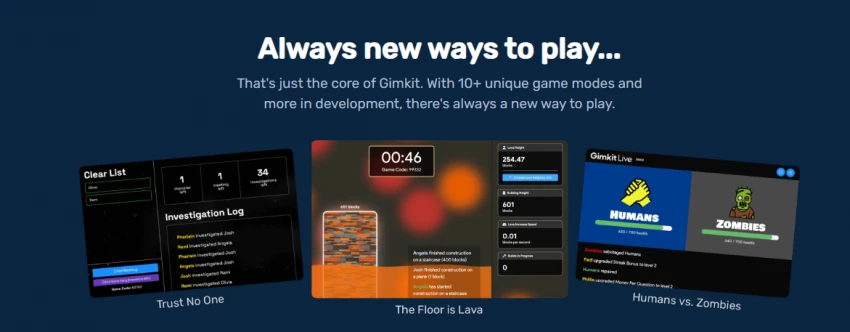
Every mode shares the same core loop: students answer questions, earn a resource (usually cash, sometimes bait or snowballs or energy), and spend it on whatever that mode is built around. What changes is the “what.” In Fishtopia you are fishing and upgrading your gear. In Don’t Look Down you are platforming up a brutal vertical map. In Trust No One you are sniffing out impostors while completing tasks. Same questions, wildly different vibe.
As of 2026, Gimkit has 13 active 2D game modes, split into nine top-down modes (like Fishtopia, Snowbrawl, One Way Out, and Capture the Flag) and four platformer modes (like Don’t Look Down and Knockback). Alongside those you have the original Classic mode, cooperative modes like The Floor Is Lava, and rotating seasonal releases.
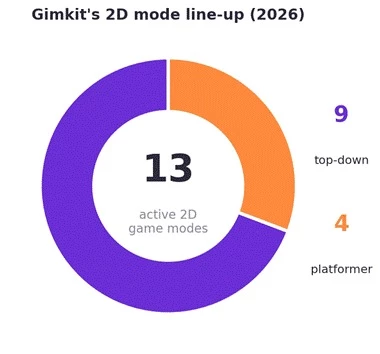
Gimkit’s 2D catalog leans heavily toward top-down exploration modes, with a smaller set of high-adrenaline platformers. The mode picker also groups everything into families like Featured, 2D Modes, Tycoon Twists, and Fun & Games.
One thing to know: the XP and cosmetics students collect (character skins, trails, stickers) only show up in the 2D modes. Classic-style modes do not hand out XP. So if your students are motivated by unlocking stuff, steer toward 2D.
A quick mode-picking cheat sheet:
| Mode | Feels like | Best for |
| Classic | An individual money-and-upgrades race | Quick knowledge checks, intro to a topic |
| Fishtopia | A relaxed fishing-and-upgrading adventure | All ages, classes new to 2D modes |
| Don’t Look Down | A rage-inducing vertical platformer | Grades 4+, high-energy sessions |
| Snowbrawl | A team snowball battle | Large groups that need team play |
| Capture the Flag | Team objective play | Large groups, keeping everyone engaged |
| Trust No One | Social deduction, find the impostor | Classes that love a twist |
| The Floor Is Lava | Cooperative survival | Teamwork-focused lessons |
A kit is just your set of questions, and building one is the part you will spend the most time on. The good news is you have a lot of shortcuts.
• Type them yourself. The old-fashioned way. Each question needs at least one right answer and one wrong one.
• Let AI do the heavy lifting. Gimkit’s built-in AI Question Generator, which launched in August 2025, spins up 10 to 30 questions on a topic you name, and you can target the grade level anywhere from Pre-K to university. It is the fastest way to go from “I need a review game on the water cycle” to a playable kit.
• Import from elsewhere. Pull in a set from Quizlet, or bring questions in from a spreadsheet. If you have questions in a document, you can convert them to a Gimkit-friendly format and drop them in.
• Raid the Question Bank. Gimkit has a built-in bank of pre-made questions you can borrow from.
• Let students build it with you. KitCollab lets students submit their own questions for you to approve and add on the spot. It is sneaky-good, because writing a question is itself a learning exercise.
If you are on a paid plan, you can also attach images and audio to questions, which matters a lot for subjects where the question is the picture or the sound: map reading, art, music, anatomy, language listening. On the free plan, questions are text only.
Anyone can click “Start.” The hosts whose classes beg for “one more round” are the ones who tune the game options. Here is where to focus.
• How the game ends. You can end on a time limit, a cash target, or a number of questions. Short on time? A tight five-minute round keeps energy high. Got a full period? Set a bigger goal and let it ride.
• The in-game economy. This is the secret sauce. For a quick five-minute game, giving students a little starting cash gets them into the fun faster. For a longer, more competitive session, start them at zero so the climb means something. If your class is hyper-competitive and games keep ending in blowouts, tighten the economy so the leaderboard stays close and nobody checks out.
• Join late. Decide whether stragglers can jump in after the game starts. Great for the kid who wandered in from the hallway; less great if you want a clean start.
The mistake most new hosts make is treating the economy like a fixed thing. It is a dial. Too easy and students finish in three minutes and get bored. Too hard and they give up. A few sessions in, you will get a feel for your class and start tuning it on instinct.
When the game ends, the useful part for you begins: the report.
Gimkit gives you a breakdown of how the session went, and it is genuinely useful data, not vanity numbers. You can see which questions tripped up the most students, how individual students did, and where the class as a whole is shaky. That is basically your lesson plan for tomorrow, handed to you.
A lot of teachers save or export these reports to track progress over time. If you run Classes, the reporting gets cleaner because everything is tied to real student names instead of random nicknames. On paid plans, the per-student and per-question detail goes deeper.
The takeaway: do not close the tab the second the game ends. The thirty seconds you spend skimming the report is often the most valuable part of the whole exercise.
Here is the question everyone actually wants answered. Let us keep it simple.
Gimkit Basic is free, forever. No trial clock, no expiry. You can host games, roster your classes, and pull reports without paying a cent. The catch is game modes: only three modes are free at any given time and they rotate, and the “Pro Exclusive” modes are capped at five players on the free plan. For the featured free modes, though, your whole class can be in with no player limit.
Gimkit Pro is the paid tier, and in 2026 it runs $14.99 a month or $59.88 for the year. Paying annually works out to about $4.99 a month, which is the move if you will use Gimkit for more than a few months. Pro unlocks every mode with no player cap, adds Assignments (self-paced homework built from your kits), lets you add images and audio to questions, and gives you richer reports. New accounts also get a 14-day Pro trial automatically, no credit card required, so you can test everything before deciding.
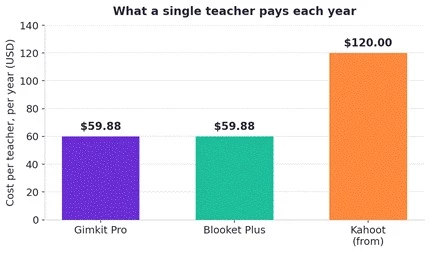
Against the other paid classroom games, Gimkit Pro sits right in the middle. It matches Blooket’s paid tier to the penny and comes in well under Kahoot’s starting price.
Here is a wrinkle worth understanding: the way you buy Pro changes what it really costs. Pay month-to-month all year and you are looking at nearly $180. Pay annually and it is $59.88. Buy in through a school license and the per-teacher price drops even further.
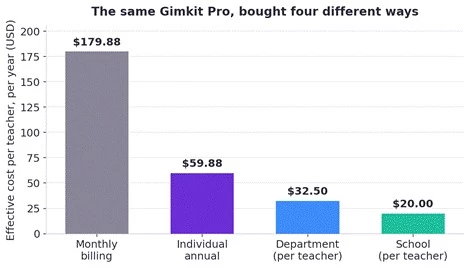
The exact same Gimkit Pro access, priced four ways. Monthly billing is by far the most expensive route; a school-wide license is the cheapest per teacher.
The plans side by side:
| Plan | Price | Covers | Per teacher |
| Basic | Free | 1 educator | $0 |
| Pro (monthly) | $14.99 / mo | 1 educator | ~$180 / yr |
| Pro (annual) | $59.88 / yr | 1 educator | $59.88 |
| Department | $650 / yr | Up to 20 teachers | $32.50 |
| School | $1,000 / yr | A full building | ~$20 (at 50 teachers) |
There is also a low-cost seasonal “Season Ticket” (around $5) that unlocks certain seasonal content and Creative features if you want to dabble without committing to Pro. And nothing gets deleted if you downgrade or cancel: your kits, classes, and assignments all stay put, and Pro access sticks around until the end of the period you already paid for.
You are probably weighing Gimkit against Kahoot, Blooket, and Quizizz (now rebranded as Wayground). They all dress up quiz practice as a game, but they make different bets. Here is the honest rundown.
| Platform | Best at | Free tier | Paid | Watch out for |
| Gimkit | Strategy and in-game economy | Whole class in featured modes; 5-player cap on Pro-only modes | $59.88 / yr | Fewer clean question reps |
| Kahoot | Big one-off events, name recognition | 10-player cap | from ~$120 / yr | That 10-player free cap |
| Blooket | Younger students, mode variety | Very generous, large groups free | ~$59.88 / yr | Aesthetic skews young |
| Wayground (Quizizz) | Self-paced homework and async | 25 students free | Tiered | Less of a live “event” feel |
The quick way to choose: if you want strategy, power-ups, and students who are genuinely into the gameplay, Gimkit is your pick, especially for middle and high school. If you are on a tight budget or teaching younger kids, Blooket’s free plan is hard to beat. If you are running a big one-time event, Kahoot’s simplicity shines. And if you mostly want homework-style self-paced quizzes, Wayground (Quizizz) is built for that.
One honest tradeoff with Gimkit: the more time students spend fishing, shopping, and platforming, the fewer actual questions they answer per minute. That is perfect when engagement is the goal. If your lesson needs a lot of rapid-fire recall, a simpler mode (or a simpler tool) might get more reps in.
Live games in a room full of devices means something occasionally hiccups. Here are the fixes that solve most host headaches.
A few things that separate a smooth session from a chaotic one:
Being a Gimkit host really comes down to five clicks: pick your questions, choose a mode, set your options, share the code, and hit start. Everything beyond that, the modes, the economy tuning, the reports, is just you getting better at turning a review session into something students actually look forward to.
The barrier to entry is almost nothing. It is free to start, your students do not need accounts, and you can be live in under two minutes. So pick a topic, generate a quick kit, and run a round. Worst case, you have spent five minutes. Best case, you have found the thing that gets your quietest class shouting answers at the screen.
Now go host something.
Do students need a Gimkit account to join?
No. Only the host needs an account. Students just enter the code at gimkit.com/join, scan the QR code, or use a link. No sign-up, no login.
Is Gimkit free to host?
Yes. Gimkit Basic is free forever and lets you host games with your whole class in the featured modes. Pro ($14.99 a month or $59.88 a year) unlocks every mode and adds assignments, media uploads, and richer reports.
How long can a Gimkit game last?
Up to 59 minutes. You can add a minute at a time during play, but only up to the 58-minute mark.
Can I host from my phone?
Yes. The 2026 interface is responsive, so you can host and manage a session from a tablet or phone while moving around the room.
What exactly is a “kit”?
It is just Gimkit’s word for a set of questions. You build or pick a kit, then host a game using it.
Share your thoughts about this article.
Be the first to post a comment!
The honest answer, the tools that actually cost nothing, the traps that don't, a...
Sakshi Dhingra1 month ago

Blockchain is no longer just about Bitcoin or Ethereum. While its roots lie in p...
Vaishali10 months ago