
I didn’t start using AIEASE because I was hunting for a “powerful AI editor.”
I used it because I needed fast edits, repeatedly, and I didn’t want to open heavy software every time I needed to clean an image, resize something, or prep visuals for content.
Over time, I ended up testing almost every feature AIEASE offers, not once, but across different images, use cases, and workloads. Some things impressed me. Some things felt limited. A few things worked only in very specific conditions.
This is not a feature list. This is what using AIEASE day after day actually feels like.
The first thing I noticed was how quickly I could start. No installation. No setup. Just upload and go.
That said, the interface throws a lot at you:
It’s all there at once. At first, it feels a bit crowded. After a few sessions, though, the layout starts to make sense — everything is built around templates, not tools in the traditional sense.
This immediately sets expectations:
AIEASE is not asking you to “edit.”
It’s asking you to choose outcomes.
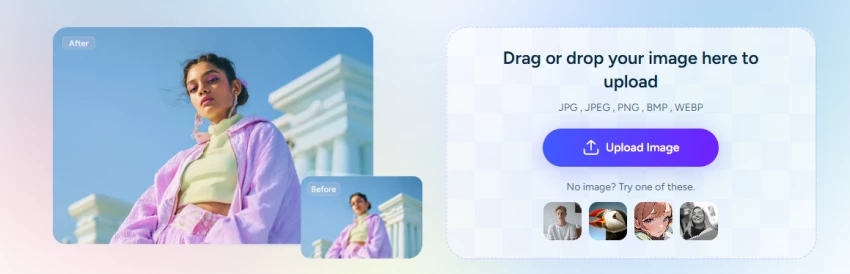
I tested the image enhancer and upscaler on:
What worked:
Where it fell short:
For social media and casual use, it’s fine.
For print or detail-sensitive work, I wouldn’t rely on it alone.
My take:
Good for speed. Not for precision restoration.
The retouching tools do exactly what they promise — but always in the same way.
Skin smoothing, blemish removal, and wrinkle reduction:
This is great if you want:
It’s not great if you want:
I found myself liking the results at first glance, then noticing they all started to look… similar.
My take:
Efficient, but a little too standardized.
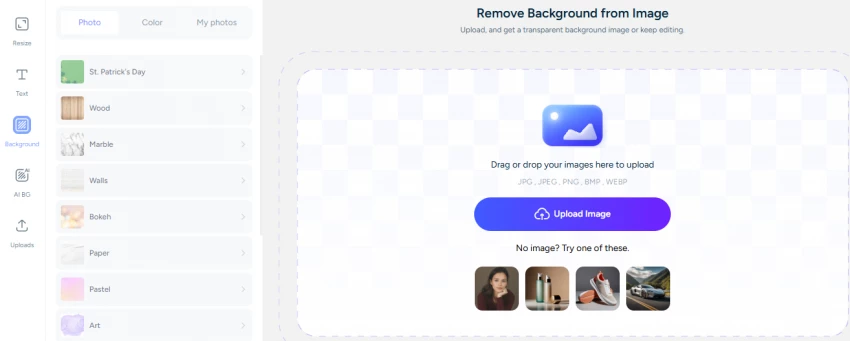
This is where AIEASE genuinely saved me time.
On simple backgrounds:
The background remover worked very well.
Problems showed up when:
Watermark and object removal worked best when the surrounding area was predictable. It struggled with textured or patterned fills.
Still, for 80% of common use cases, it did the job faster than manual editing.
My take:
Practical and dependable — with realistic limits.
I tested the AI headshot generator with multiple photos and styles.
Results:
But:
It’s fine for LinkedIn-style images or placeholder visuals.
I wouldn’t use it for anything that needs strong personality.
My take:
Convenient, not character-driven.

The image extender impressed me initially. At a glance, the generated areas blended well.
When I zoomed in:
Recoloring worked better for:
It struggled with:
My take:
Good for layout fixes, not detailed design work.
The video tools felt more like effects than editing.
I tried:
They’re fast, and they look fine for:
But:
This is not video editing — it’s animation presets.
My take:
Entertaining, limited, clearly not professional video tooling.
This is where AIEASE consistently delivered.
Simple tasks:
Batch processing (paid):
My take:
Speed is the platform’s biggest strength.

I tested both.
Free:
Paid:
Important point:
The AI doesn’t suddenly become smarter when you pay.
You just get more room to use it.
My take:
Paying makes it usable at scale, not magically better.
One thing I noticed after heavy use:
AIEASE outputs are very consistent.
That’s good for:
It’s limiting for:
You’re trading control for predictability — knowingly or not.
Like most browser-based tools:
I didn’t see red flags, but I also wouldn’t upload:
My take:
Normal cloud-tool caution applies.
Speed: 4.5 / 5
Ease of use: 4.5 / 5
Output quality: 3.8 / 5
Creative control: 2.5 / 5
Value (for automation): 4 / 5
AIEASE didn’t replace my editing tools.
It replaced my patience for repetitive tasks.
When I needed speed, consistency, and “good enough” results, it earned its place.
When I needed precision or creative freedom, I went elsewhere.
If you treat AIEASE as a time-saving assistant, it works exactly as expected.
If you expect it to be a creative studio, you’ll hit its limits fast.
That balance defines the tool, and using it with that mindset makes all the difference.
Be the first to post comment!

There’s a very specific frustration that most developers go through at some poin...
Sakshi Dhingra1 week ago

At first, it doesn’t feel like a tool.It feels like a shortcut you weren’t suppo...
Sakshi Dhingra2 weeks ago
As a business leader or marketing professional, the constant challenge has alway...
Sakshi Dhingra2 weeks ago
AI avatar video tools have quickly become one of the fastest-growing categories...
Sakshi Dhingra2 weeks ago

As a content creator, managing a diverse range of video content is a daily chall...
Sakshi Dhingra3 weeks ago
The first time I realized something was wrong with my content was late at night...
Sakshi Dhingra3 weeks ago