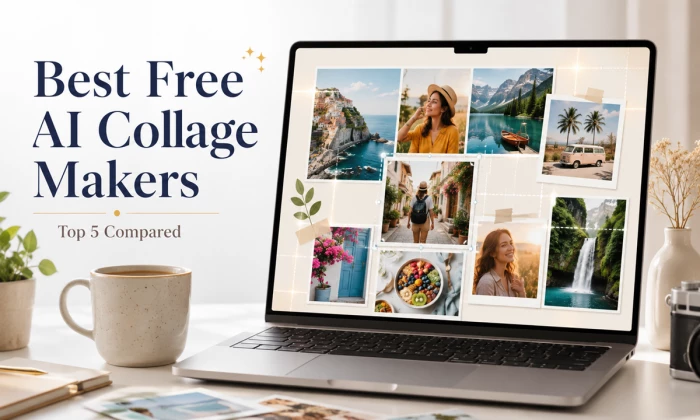
My Quick Answer: If you want the single best free collage maker right now, I recommend Canva. Its Auto Collage feature, massive template library, and genuinely usable free plan put it ahead of everything else I researched. Adobe Express is my runner up for people who want the most generous free plan, and PhotoGrid is my pick if watermark free HD exports matter most to you. Transparency note: I have not personally run hands on tests on these tools for this article. Everything here is based on official documentation, published feature lists, pricing pages, and verified user reviews. I explain exactly how I evaluated each tool below. |
If you have ever tried to squeeze twelve vacation photos into one Instagram post, you already know why collage makers exist. What you may not know is how much they have changed. The best free collage makers today are not just grids with drag and drop boxes. They use AI to read your photos, understand what is in them, and arrange everything into a layout that looks like a designer made it.
So which one should you actually use? I spent time digging into the five most talked about free AI collage makers to answer exactly that question. In this guide, I will walk you through how I evaluated them, what each one does well, where each one falls short, and which one I would pick depending on what you need. My goal is simple. By the end of this article, you should know exactly which free collage maker is right for you, without having to sign up for five different accounts to find out.
Let me be upfront about something most articles like this never tell you. I did not run hands on tests on these five tools myself. I did not upload the same fifty photos to each one and time the results. I think you deserve to know that before you read a single recommendation.
What I did instead was structured desk research. I went through each tool's official website, help documentation, and published pricing pages. I read through verified user reviews on app stores and review platforms. I compared independent roundups and expert coverage from multiple publications to see where they agreed and where they contradicted each other. When a claim came only from the vendor itself, such as a watermark free export promise, I flagged it as a vendor claim rather than treating it as an independently confirmed fact.
To keep my evaluation consistent, I scored every tool against the same framework. I call it the CLEAR framework, and here is how it breaks down.
| Criterion | Weight | What I Looked At |
| C: AI Capability | 25% | Smart auto layout, AI photo analysis, background removal, enhancement tools, and generative features on the free plan |
| L: Layout and Template Variety | 20% | Number and range of collage templates, grid styles, freeform options, and formats for social, print, and web |
| E: Ease of Use | 20% | Learning curve, interface clarity, and how quickly a first time user can go from photos to finished collage |
| A: Access on the Free Plan | 25% | What you genuinely get without paying: watermarks, ads, feature locks, credit limits, and export restrictions |
| R: Rendering and Export Quality | 10% | Maximum export resolution, print readiness, and file format options on the free tier |
I weighted AI capability and free plan access highest because that is what this article is really about. A tool with brilliant AI that hides everything behind a paywall is not the best free collage maker. Neither is a completely free tool with no intelligence behind it. The winner needs both.
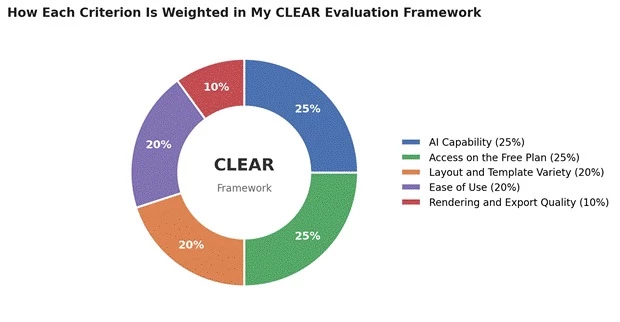
Figure 1: The weighting I applied to each criterion in the CLEAR framework.
One more thing. The scores you will see in the charts throughout this article are my assessment scores based on this framework. They reflect documented features and aggregated user feedback, not laboratory measurements. I would rather give you an honest, clearly labeled evaluation than pretend I benchmarked render times in a test lab.
Traditional collage makers hand you a grid and let you drag photos into boxes. That approach worked fine for years, but it puts all the design decisions on you. Which photo goes where? Do the colors next to each other clash? Should the portrait shot get a vertical slot? Most of us do not think about any of that, and our collages show it.
AI collage makers flip the process. Instead of asking you to design, they analyze your photos first. The AI looks at colors, faces, subjects, exposure, and orientation, then builds a layout around what it finds. Portrait photos land in vertical slots. Warm toned images sit next to complementary tones instead of clashing ones. The overall composition feels deliberate, because in a sense it is.
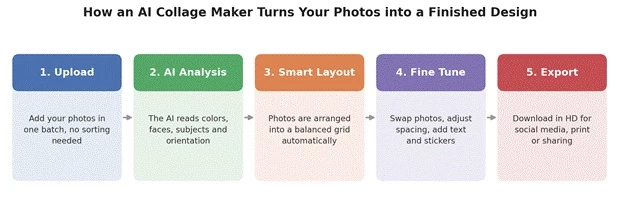
Figure 2: The typical five step workflow shared by modern AI collage makers.
The practical benefit is speed and confidence. You get a result that looks intentional in under a minute, and then you fine tune it instead of building it from scratch. For anyone making social posts, family keepsakes, product showcases, or mood boards, that is a meaningful difference. This is why I focused this entire comparison on AI powered tools rather than plain grid editors.
Here is the short version of everything I found, before we go deep on each tool.
| Tool | Standout AI Feature | Free Plan Highlight | Watch Out For | Best For |
| Canva | Auto Collage plus Magic Design layouts | Millions of free templates and 5 GB storage | Monthly AI credit cap, premium assets watermarked | Most people, social media creators |
| Adobe Express | Firefly powered generative effects | Thousands of templates with animation and MP4 export | 2 GB storage, some premium assets locked | Polished results, brand consistency |
| PhotoGrid | AI background remover, object eraser, enhancer | Vendor states watermark free HD and 4K exports | Vendor claims, verify export quality yourself | Watermark free exports, beginners |
| Fotor | Bulk upload with automatic grid filling | 1,000+ collage templates, print ready output | Feature locks and ads on the free tier | Large photo batches, print projects |
| Picsart | AI backgrounds, cutouts, and enhancement | Free templates, stock images, layer editing | Ads and watermarks on some free exports | Creative mobile first editing |
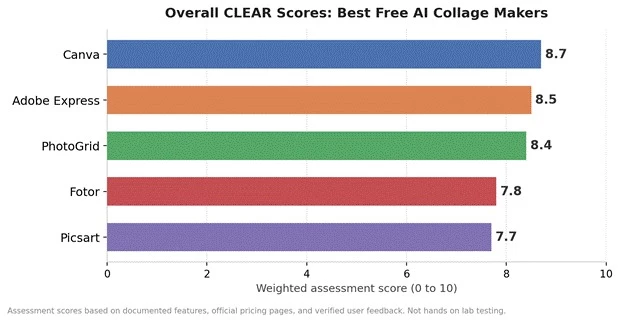
Figure 3: My overall weighted CLEAR scores for the five tools.
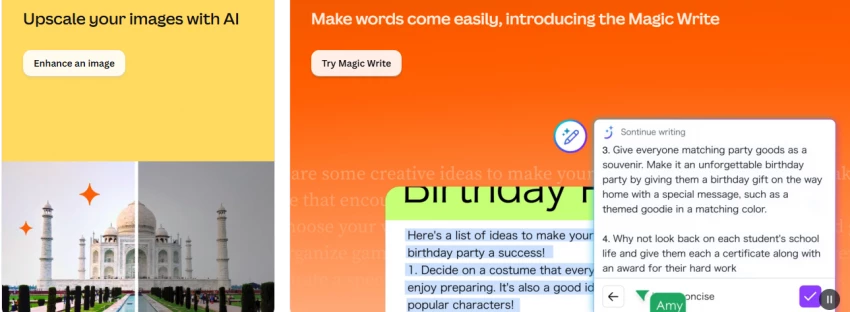
Canva sits at the top of my ranking, and honestly, it was not particularly close once I weighed everything. It is the most complete package of the five. You get a huge library of collage templates, an Auto Collage feature that arranges batches of photos for you, and the broader Magic Design suite that can generate entire layouts from a simple prompt.
Canva's AI features live under an umbrella the company calls Magic Studio, a suite of more than two dozen tools built into the editor. For collages specifically, the relevant pieces are Auto Collage, which fills a layout from a batch of uploaded photos, and Magic Design, which generates styled layouts from a text prompt. Beyond layout, the free plan gives you limited access to tools like Magic Write for captions and a background remover with restricted uses.
This is where I want to be precise, because Canva's free plan is genuinely useful but not unlimited. Based on Canva's published documentation and multiple independent reviews from 2026, the free plan includes millions of free templates and design elements, 5 GB of cloud storage, and a limited monthly allowance of AI credits. Reviewers commonly place that allowance at roughly 50 uses per month, though Canva's own documentation describes it in terms of standard and premium credit tiers, so the exact number you see may vary by account and region.
The catch to understand is the premium asset system. Canva's library mixes free and Pro content. If your generated collage happens to use a Pro template, photo, or graphic, that element carries a watermark until you either remove it, license it, or upgrade to Canva Pro, which runs at about 15 US dollars per month based on current published pricing. For pure collage work with your own photos, this rarely becomes a problem, since your uploaded images are yours and the core collage layouts include plenty of free options.
• The template variety is unmatched. No other tool in this comparison comes close to the sheer range of collage layouts, formats, and styles.
• Auto Collage plus manual editing gives you the best of both worlds. The AI does the heavy lifting and you keep full control afterward.
• The free plan has no ads and no watermark on designs built entirely from free assets and your own photos.
• It works everywhere: web, Windows, Mac, iOS, and Android, with your projects synced across all of them.
• The monthly AI credit cap means heavy AI users will hit a wall and feel the pull toward Canva Pro.
• Several genuinely useful tools, such as Magic Resize and unlimited background removal, are Pro only.
• Independent reviewers have noted that AI generated images can output at lower resolution on the free tier.
My take: if you only bookmark one tool from this article, make it Canva. The combination of AI assistance, template depth, and a free plan you can actually live on is why it earned my top CLEAR score of 8.7.
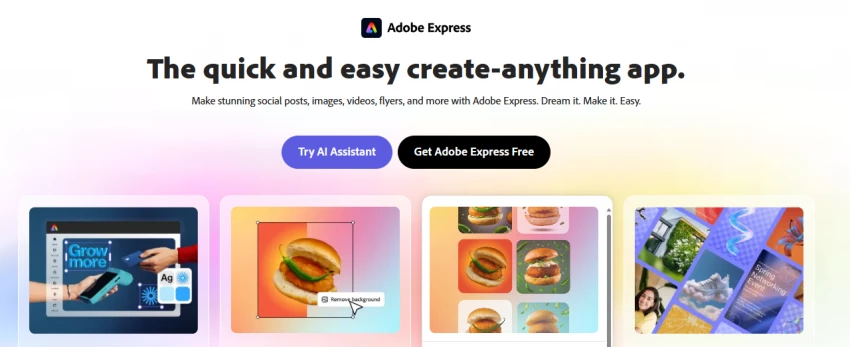
Adobe Express surprised me during this research. I expected the free plan to be a thin teaser for a Creative Cloud subscription, and that is not what I found. Adobe's own documentation confirms the free plan includes thousands of templates, photo editing and effects, animation features, and 2 GB of storage. One independent 2026 comparison went further and called it the strongest free tier for personalized collages, noting that the full template library is available on the free plan with only stock photo downloads meaningfully capped.
Adobe Express runs on Firefly, Adobe's generative AI family, which is trained on licensed content. For collage work, that shows up as intelligent auto placement, generative text effects, quick background removal, and one click animation styles that can turn a static collage into an MP4 for social media. The animation angle is a genuine differentiator. None of the other four tools make animated collage export this central to the free experience.
You can build, edit, and export collages without paying and without a watermark on free assets. The template selection for collages runs into the thousands. The main constraints I found documented are the 2 GB storage ceiling, a monthly cap on Adobe Stock photo downloads, and premium templates and fonts reserved for the paid tier. For a typical user making collages from their own photos, these limits are easy to live with.
• The free plan is unusually generous, with the core collage toolset fully open.
• Firefly's generative features are designed to be commercially safe, which matters if you use collages for business content.
• Animated collage export as MP4 is built in, which is perfect for Instagram and story formats.
• Brand kit style controls help keep fonts and colors consistent across repeated posts.
• 2 GB of storage fills up quickly if you work with large photo batches.
• The template library, while strong, is smaller than Canva's.
• Some reviewers describe the AI features as solid rather than industry leading.
My take: Adobe Express is the pick if you want the most complete free experience with no watermark anxiety. It scored a very close 8.5 in my framework, and for some readers it will genuinely be the better choice over Canva.
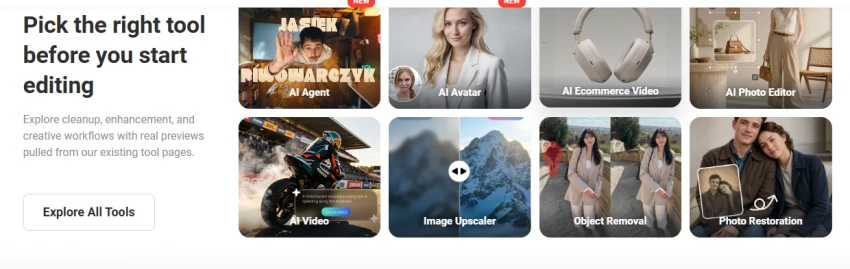
PhotoGrid is the specialist of this group. Where Canva and Adobe Express are general design platforms with collage features, PhotoGrid is built around collages first. The company states that its collage maker supports more than 20,000 templates, combines anywhere from 2 to over 10 photos, and exports in HD and 4K with no watermark on the free plan.
I want to be careful here, because the boldest claims about PhotoGrid, including the watermark free 4K export promise, come from PhotoGrid's own website and blog. I did not find independent verification at the same level of detail that exists for Canva and Adobe Express. That does not mean the claims are false. It means I am labeling them as vendor claims, and I would encourage you to run one test export yourself before committing to a big project. This is exactly the kind of distinction I think review articles owe their readers.
PhotoGrid bundles a set of one click AI tools around its collage core: background removal, object erasing, photo enhancement, upscaling, and watermark removal for your own photos. The pitch is that you can fix and polish your photos inside the same app where you arrange them, without hopping between tools. Independent app roundups group it with Picsart in the AI assisted category of collage apps, which matches what the documented feature list suggests.
• The template count is enormous for a dedicated collage tool, with layouts across every occasion and format.
• The free, watermark free HD export position, if it holds up in your testing, beats what most competitors offer.
• It runs on iOS, Android, and the web with cross platform sync, so you can start on your phone and finish on a laptop.
• The three step workflow of pick a template, drop photos, export is about as beginner friendly as this category gets.
• Its smart layout intelligence appears lighter than Canva's Auto Collage based on documented feature descriptions.
• The strongest claims lack independent verification, so treat the 4K watermark free promise as something to confirm.
• As a collage first tool, it will not replace a full design platform if your needs grow beyond photos.
My take: PhotoGrid scored 8.4 in my framework, driven by its free plan generosity and template depth. If watermarks are your number one frustration with free tools, start here.
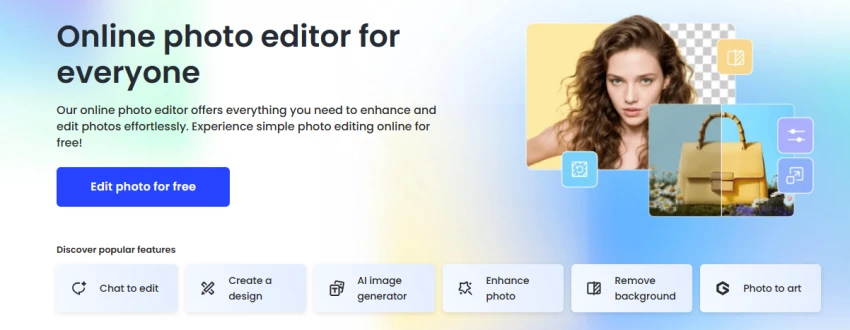
Fotor has been around the online photo editing space for years, and its collage maker reflects that maturity. The official feature page lists more than 1,000 collage templates and photo grids, and independent comparisons consistently highlight one specific strength: bulk handling. If you have twenty or more photos from a trip, an event, or a product shoot, Fotor's bulk upload and automatic grid filling handle the whole batch in one pass.
Fotor's collage maker sits inside a wider AI toolkit that includes photo enhancement, background editing, lighting adjustment, and composition refinement tools. For collages, the AI contribution is mostly in the automatic arrangement of large photo sets and in the one click cleanup you can apply to individual photos before they go into the grid. Reviewers describe the interface as a straightforward drag and drop experience with adjustable spacing, margins, and corner radius controls.
The free tier gives you access to the core collage maker and a substantial share of the template library, with output quality that independent coverage describes as print ready. The trade offs are typical of freemium editors. Some features and templates are locked behind Fotor Pro, and you will see ads on the free tier. One roundup also noted that certain merge features were time limited in the free version, so the exact boundaries of free access appear to shift over time.
• Bulk upload with automatic filling is the best documented solution in this group for very large photo sets.
• Print ready output and templates designed for photo books, wall prints, and cards make it the strongest print option here.
• Template variety within collages is engaging, from simple square grids to diagonal and shaped layouts.
• Ads and feature locks on the free tier are more noticeable than with Canva or Adobe Express.
• The boundaries of what is free have shifted over time, which makes the free experience harder to predict.
• Its AI layout intelligence is solid but not the standout in this comparison.
My take: Fotor scored 7.8 in my framework. It is not my overall winner, but for a 30 photo mosaic destined for a printed photo book, it would honestly be my first choice.
Picsart is the most creative tool in this lineup and the most mobile centered. Independent coverage from 2026 reports it serves over 150 million monthly users, and app store roundups consistently file it under the AI first category of collage apps. Its collage maker supports up to 10 photos per layout, offers free templates and stock images, and connects to a genuinely deep creative toolkit: layers, stickers, effects, AI generated backgrounds, and AI enhancement.
Picsart's AI shows up throughout the editing flow rather than only at the layout stage. You can generate new backgrounds from text, cut out subjects automatically, enhance photo quality with one tap, and apply AI effects to individual photos inside your collage. Roundup coverage describes its AI layout suggestions as decent rather than class leading, with the real value sitting in the sticker and decoration library that turns basic grids into expressive compositions.
The free tier is capable but comes with the most strings attached in this comparison. Multiple independent sources confirm the free experience includes ads, and that AI outputs and some exports carry watermarks unless you upgrade to the Gold tier. If your collages are personal and casual, that may not bother you. If you are producing content for a brand or a client, it likely will.
• The creative asset library of stickers, effects, and community content is the deepest of the five tools.
• Layer based editing gives you real compositional control that grid only tools cannot match.
• AI background generation and cutouts open up freeform scrapbook style collages, not just grids.
• Watermarks on AI outputs and ads on the free tier hold back an otherwise strong package.
• The everything at once interface takes longer to learn than PhotoGrid or Adobe Express.
• Costs escalate if you end up wanting the full toolkit, since much of it sits behind the subscription.
My take: Picsart scored 7.7 in my framework, held back almost entirely by free plan restrictions. As a creative playground, it might be the most fun tool on this list.
Rankings hide detail, so here is the full criterion level picture. The heatmap below shows exactly where each tool earned and lost points in my assessment.
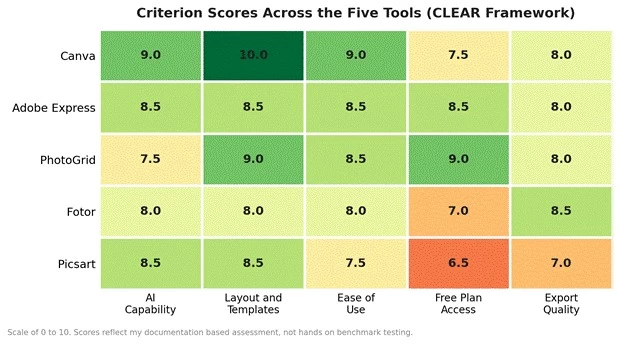
Figure 4: Criterion level assessment scores across the five tools.
A few patterns are worth calling out. Canva dominates on templates and usability but pays a price on free plan access because of its credit caps and premium asset watermarks. Adobe Express is the most balanced tool in the entire comparison, with no score below 8. PhotoGrid wins the free access column outright. And Picsart's creative strength is clearly visible in its AI and template scores, even as its free plan drags the total down.
Here is how the free plans compare on the details that matter most in day to day use.
| Tool | Watermark Situation on Free | AI Access on Free | Export Ceiling | Platforms |
| Canva | None on free assets and own photos; premium assets watermarked | Limited monthly credit allowance | HD; AI images may be lower resolution | Web, Windows, Mac, iOS, Android |
| Adobe Express | None on free assets | Included with usage limits | HD images and MP4 animation | Web, iOS, Android |
| PhotoGrid | None, per vendor statements | Core AI tools included | HD and 4K, per vendor statements | Web, iOS, Android |
| Fotor | Some features and templates locked instead | Core tools with locks and ads | Print ready resolution | Web, Windows, Mac, iOS, Android |
| Picsart | Watermarks on AI outputs and some exports | Broad but watermarked | HD with Gold upgrade | iOS, Android, Web |
The best free collage maker is not the same tool for everyone, so let me make this practical. Find yourself in one of these situations and you have your answer.
• You are most people: You just want the safest all around choice, and you may design other things later. Pick Canva.
• Paywalls hater: You want the fullest free experience with animation and no watermark surprises. Pick Adobe Express.
• You export a lot: You need clean, high resolution exports for free and want the fastest path from photos to result. Pick PhotoGrid, and run one test export first.
• Working in batches: You are turning 20, 30, or 50 photos into a photo book page, a wall print, or a big mosaic. Pick Fotor.
• You create for fun: You want scrapbook style creativity with stickers, layers, and AI backgrounds, mostly on your phone. Pick Picsart.
One honest tip from my research: nothing stops you from keeping two of these in rotation. Several 2026 roundups observed that many users pair a template heavy design tool for occasional projects with a quick grid tool for everyday use, and that combination covers nearly every collage need without spending anything.
So, what is the best free collage maker?
After weighing all five tools against the same CLEAR framework, my answer is Canva, with a score of 8.7 out of 10. It offers the strongest combination of AI powered layout help, template depth, cross platform polish, and a free plan that does not punish you for using it. Adobe Express follows at 8.5 and is a completely legitimate alternative first choice, especially if free plan generosity is your top priority. PhotoGrid at 8.4 rounds out my podium as the watermark free specialist.
Fotor and Picsart are not losers here. They are specialists. Fotor earns a place for anyone working with big photo batches and print output, and Picsart is the clear pick for expressive, mobile first creativity. In a category this crowded, finishing in my top five at all means a tool is worth your time.
| Bottom line: start with Canva. If its AI credit limits or premium asset watermarks frustrate you within the first week, move to Adobe Express. Between those two tools, virtually everyone reading this will find a free collage maker they are happy with. |
Share your thoughts about this article.
Be the first to post a comment!

Gening AI is free, needs no login, and forgets everything the moment you close t...
Nitin5 hours ago

Transparency note before you read further. I have not performed hands on testing...
Deepak Mehra1 day ago

OpenFuture AI is not an app that edits photos or writes copy. It is a directory:...
Harpreet Singh1 day ago
Meta has released Muse Glimmer, a 30-billion-parameter open-weight AI model desi...
Nitin1 day ago

If you have been trying to figure out what SuperGrok actually costs, you have pr...
Nitin6 days ago

Most AI image generators look the same on the landing page. A prompt box, a few...
Deepak Mehra1 week ago