| Aspect | Score (10) |
| Core vector drawing | 9.0 |
| Node editing & paths | 9.2 |
| Performance (complex files) | 8.0 |
| Import / export reliability | 8.2 |
| Typography handling | 7.4 |
| UI & workflow efficiency | 7.6 |
| Stability & longevity | 9.3 |
| Value (cost vs output) | 10.0 |
| Overall | 8.7 / 10 |
When I started using Inkscape, I deliberately avoided treating it as a replacement for anything else. I didn’t compare shortcuts, didn’t try to recreate old habits, and didn’t expect feature parity with commercial tools.
Instead, I asked a simpler question:
Can this tool handle real vector work, logos, diagrams, SVGs, exports, without friction or surprises?
That mindset shaped how I evaluated everything that followed, starting with the fundamentals: setup and day-to-day workflow.
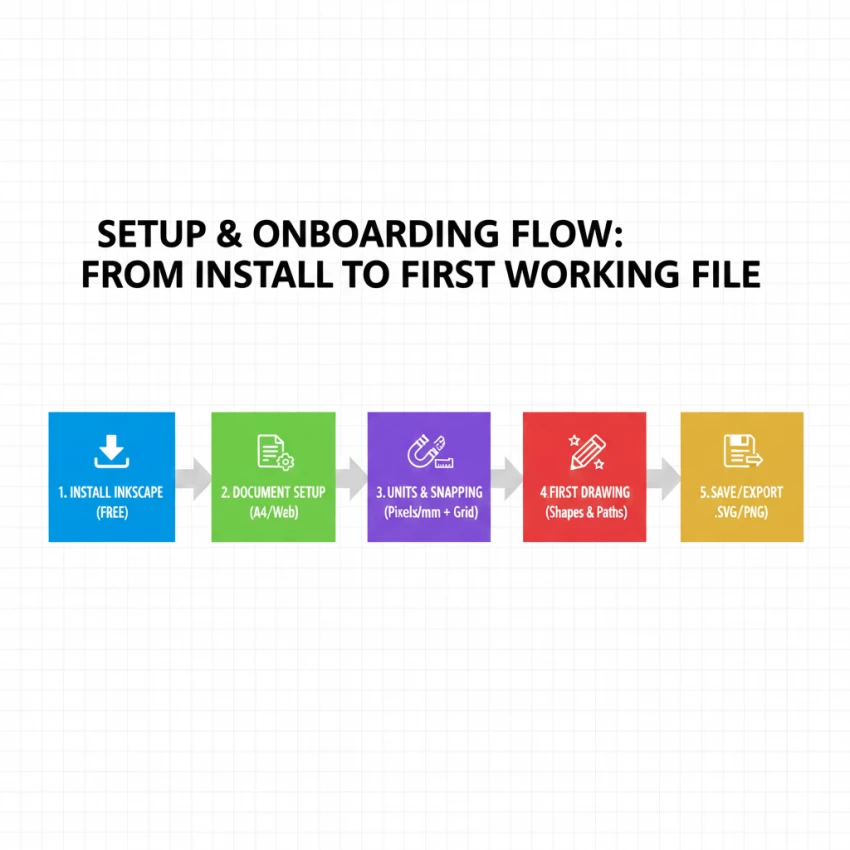
Inkscape installs quickly and works out of the box, but the real experience improves once you make a few early decisions:
There’s no “mode switching” for web vs print. Everything lives in one consistent environment, which reduces mental overhead over time.
That simplicity flows directly into how drawing works, which is where Inkscape starts to show its real character.
And once you start drawing, the strengths become much more concrete.
Most of my time in Inkscape is spent in three tools:
This is where Inkscape earns trust. Nothing feels hidden. Curves behave predictably. Nodes do exactly what they show.
Unlike tools that abstract vector logic behind smart handles or AI smoothing, Inkscape keeps geometry explicit. That can feel less “friendly” at first—but it’s far more reliable once precision matters.
Snapping is strict, sometimes annoyingly so, but after tuning, it becomes a genuine asset for logo work, icon grids, and UI elements.
Once shapes exist, everything depends on how well paths can be edited and combined, which leads to the most important part of the experience.
This is where Inkscape quietly outperforms expectations.
Recent versions are noticeably faster with complex paths. Dense technical diagrams, maps, or illustrations that once lagged now feel controlled.
This isn’t flashy progress, but it’s the kind professionals notice immediately.
Once paths are reliable, the next question becomes unavoidable: how does it handle text?
Text in Inkscape is functional, not expressive.
What works well:
Where it struggles:
My workaround has been consistent: treat Inkscape as a vector stage, not a layout engine. For logos, wordmarks, and SVG headings, it’s solid. For editorial typography, I finalize text elsewhere or convert early.
That approach naturally pushes you toward imports and exports, which is where many tools fall apart.
Most real projects don’t start in a vacuum.
From long-term use:
PDF imports are generally dependable
.AI files work best when effects are flattened
.CDR support has improved, but varies by file
The key lesson is expectation management. Inkscape preserves geometry better than appearance tricks. If you accept that, imports feel workable instead of frustrating.
Eventually, everything comes down to output, because vector tools are judged by what they produce.
Export is one of Inkscape’s quiet strengths.
SVG
PNG
This consistency is a major reason educators, developers, and long-term projects trust it.
But no honest review is complete without acknowledging the boundaries.
Inkscape does not try to compete on:
Those omissions are deliberate. The trade-off is clear:
Whether that’s a drawback or an advantage depends entirely on your priorities, and recognizing that is essential to judging the tool fairly.
One of the most underrated aspects of Inkscape is confidence over time.
I trust that files created today will open ten years from now. That’s a rare guarantee in modern creative software, and it matters more than new features for many use cases.
Which brings everything back to who this tool is actually for.
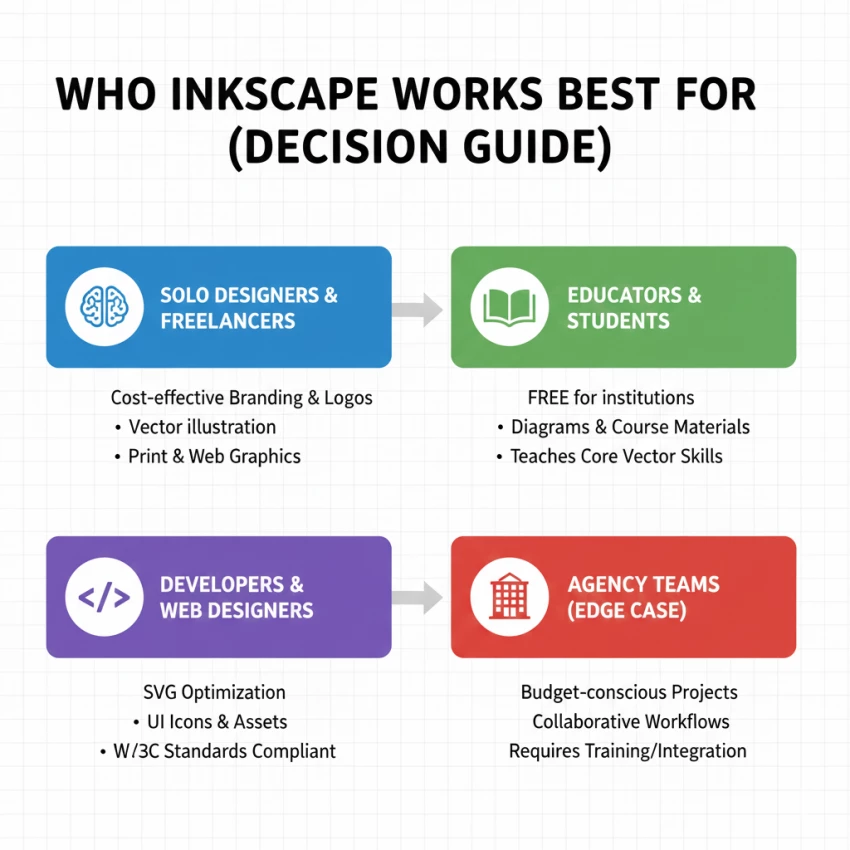
Understanding this boundary makes Inkscape easier to use, and easier to respect.
Inkscape doesn’t rush you.
It doesn’t assist you aggressively.
It doesn’t upsell or interrupt.
It gives you control, and expects you to use it deliberately.
Once workflows are established, it fade into the background. And in creative tools, that’s often the highest compliment possible.
Final verdict:
Inkscape doesn’t feel like a fallback. It feels like stable, open infrastructure for vector work, quietly doing its job, day after day.
Be the first to post comment!

Managing remote employees is very different from managing people in an office. W...
Sakshi Dhingra2 weeks ago

A school gradebook sounds like a simple thing until you watch what happens when...
Sakshi Dhingra2 weeks ago
The Growing Buzz Around EditPro in the AI Editing SpaceIn 2026, the name “EditPr...
Sakshi Dhingra2 weeks ago
When I first started deploying large language models, I assumed that choosing th...
Sakshi Dhingra3 weeks ago
Few software websites have survived as many internet eras as Softonic. Launched...
Suraj Malik1 month ago
PDF files are everywhere, from business contracts and academic papers to invoice...
Suraj Malik1 month ago